How do I blur peoples faces in videos and photos
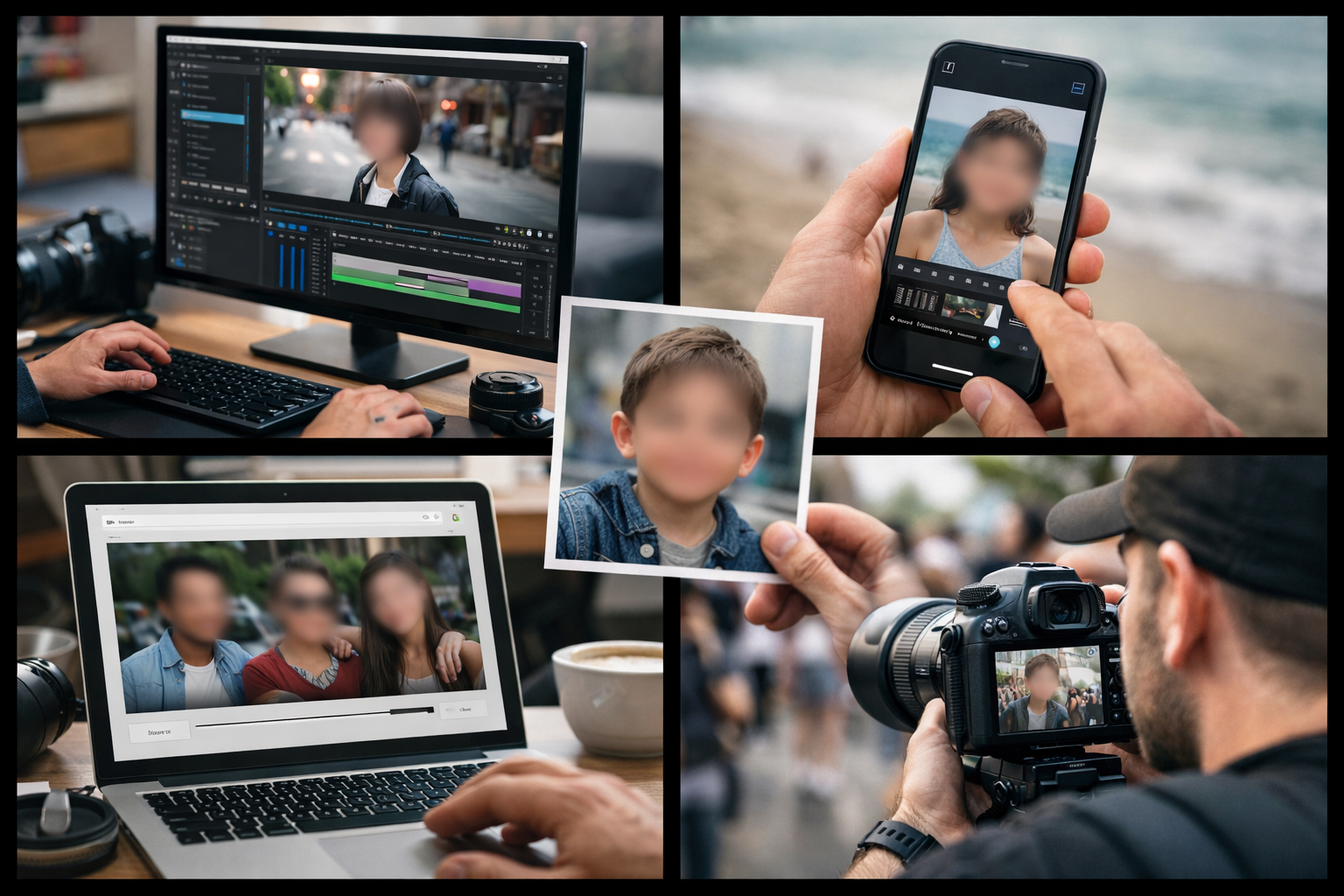
Privacy protection has become a non-negotiable aspect of content creation in today's digital landscape. Whether you're a content creator sharing street footage, a business protecting customer identities, or someone who values privacy in personal videos, understanding how to blur face in video content is essential. This comprehensive guide explores every method available to protect identities while maintaining engaging visual content.
Understanding Face Blurring and Its Importance
Face blurring serves multiple critical purposes in modern content creation. Content creators need to protect innocent bystanders who appear in their footage, journalists must safeguard sources and witnesses, businesses require identity protection for case studies and testimonials, and families want control over who appears identifiable in shared memories.
The evolution of face blurring technology has transformed what was once a complex professional editing technique into an accessible tool for everyone. Modern blur face ai technology can automatically detect, track, and anonymize faces in seconds, making privacy protection both efficient and effective.
Beyond legal compliance and ethical responsibility, face blurring helps creators focus viewer attention on their main message rather than background subjects. When you blur faces in a video, you're not just protecting privacy—you're also improving your content's professional quality and maintaining viewer focus on what matters most.
Professional Methods to Blur Face in Video on Desktop
Desktop video editing software provides the most control and precision for face blurring projects. Adobe Premiere Pro remains the industry standard for professionals who need to censor face in video content with pixel-perfect accuracy. The software's masking tools combined with motion tracking allow you to apply blur effects that follow subjects seamlessly throughout complex camera movements.
The process in Premiere Pro involves creating a mask around the face, applying your chosen blur effect—whether pixelated blur for obvious censorship or gaussian blur for subtler privacy protection—and enabling tracking to follow the subject automatically. The software handles even challenging scenarios like partial occlusions and rapid movements.
Final Cut Pro offers similar capabilities for Mac users, with an intuitive interface that makes professional-grade face blurring accessible. The magnetic timeline and object tracking features streamline the workflow, allowing you to blur moving face in video content efficiently.
DaVinci Resolve deserves special mention as a completely free option that rivals paid alternatives in capability. The software includes advanced tracking features and multiple blur types, making it perfect for creators who need professional results without the professional price tag. You can apply face blur effect variations including motion blur, directional blur, and traditional gaussian blur depending on your creative needs.
How to Blur Face in Video on iPhone
iPhone users benefit from a robust ecosystem of apps designed specifically for mobile video editing. The ability to blur faces on iPhone has become increasingly sophisticated, with apps now offering features that once required desktop computers.
CapCut stands out as the most comprehensive free solution for iPhone users. The app includes automatic face detection that identifies subjects in your footage, motion tracking that follows faces throughout the clip, multiple blur styles including mosaic and gaussian effects, and intensity controls for precise privacy protection. The interface is intuitive enough for beginners while offering enough depth for more experienced editors.
To blur face in video using CapCut, simply import your video, tap the effects menu, select the blur or mosaic effect, position it over the face you want to obscure, enable tracking, and adjust the intensity to your preference. The app handles the rest, applying consistent blur throughout your clip.
InShot provides another excellent option with slightly different features. While CapCut excels at automatic tracking, InShot offers more creative blur shapes and artistic effects. Video Mosaic specializes specifically in privacy protection, offering robust features designed explicitly to blur out faces in video content with maximum effectiveness.
Free Online Solutions to Blur Face in Video
Online platforms have democratized face blurring, making it possible to blur face in video online free without installing software or possessing technical expertise. These web-based solutions are perfect for quick edits, occasional use, or when working on devices where you can't install applications.
Kapwing leads the online editing space with its user-friendly interface and powerful features. The platform allows you to upload videos directly from your device or paste URLs from cloud storage, automatically detect faces using blur face ai technology, apply tracking that follows movement, and export in various resolutions. The free tier works excellently for shorter clips, while the paid version removes watermarks and extends processing limits.
The beauty of using Kapwing to blur face in video online lies in its simplicity. You don't need to understand complex editing concepts—the AI handles face detection automatically, and you simply approve or adjust the selections. This makes it accessible even for users with no prior video editing experience.
VEED.IO offers similar capabilities with a slightly different interface approach. The platform excels at batch processing, allowing you to blur faces in a video containing multiple subjects efficiently. The auto blur faces in video feature saves considerable time when dealing with crowd scenes or group footage.
Clideo rounds out the top free options with a streamlined, purpose-built interface. While it offers fewer advanced features than Kapwing or VEED.IO, its simplicity makes it perfect for straightforward face blurring tasks. The platform supports all major video formats and processes files quickly.
AI-Powered Automatic Face Blurring
Artificial intelligence has revolutionized how we approach privacy protection in video content. Blur face ai technology can now accomplish in seconds what previously required hours of manual work. These intelligent systems analyze each frame of your video, identify human faces regardless of angle or lighting conditions, track facial movement across frames even during rapid motion, and apply consistent blur effects automatically.
Tools like D-ID and Facepixelizer represent the cutting edge of AI-powered privacy protection. These platforms don't just blur faces—they understand context, can distinguish between subjects you want to protect and those you want to remain visible, and adapt blur intensity based on face size and distance from camera.
The technology behind blur face ai uses machine learning models trained on millions of images to recognize facial features under various conditions. This training allows the AI to identify faces even when partially obscured, viewed from unusual angles, or in challenging lighting situations. When you need to cover face in video content quickly and reliably, AI-powered tools deliver unmatched efficiency.
For content creators managing large volumes of footage, AI automation becomes essential. Street photographers, event videographers, and documentary filmmakers particularly benefit from technology that can blur faces in a video automatically, allowing them to focus on creative decisions rather than tedious manual editing.
How to Blur Face in Photo
While video presents unique challenges with motion tracking, photo editing remains more straightforward and accessible. Most modern smartphones include built-in capabilities to blur face in photo content directly from the gallery app, though dedicated editing apps offer greater control and precision.
Snapseed, Google's free photo editing app, provides excellent tools for selective face blurring. The healing brush and selective adjust tools allow you to target specific areas with precision. The app's intuitive interface makes it easy to apply normal face blur that looks natural and professional.
Adobe Photoshop Express brings professional-grade editing to mobile devices. While the full desktop version of Photoshop offers unlimited possibilities, the mobile app includes everything most users need to blur face in photo content effectively. The spot removal tool and adjustment brush work seamlessly together for precise results.
For desktop photo editing, GIMP serves as an excellent free alternative to Photoshop. The software includes all the necessary tools to blur face in photo content, from simple gaussian blur to more complex feathered selections that create natural-looking privacy protection.
Choosing the Right Blur Style for Your Content
Not all blur effects serve the same purpose or create the same aesthetic. Understanding the differences helps you select the right approach for your specific needs and platform requirements.
Pixelated blur creates the distinctive mosaic effect commonly seen in news broadcasts and documentary content. This style makes censorship obvious and intentional—there's no ambiguity about whether privacy protection was applied. The blocky appearance clearly communicates that identities are being protected, making it ideal for journalistic content, legal documentation, and situations where you want viewers to understand that privacy measures are in place.
Gaussian blur offers a softer, more subtle approach that many find less visually distracting. This normal face blur creates a smooth, out-of-focus effect similar to camera depth of field. It's perfect for social media content, creative projects, and situations where you want privacy protection without drawing excessive attention to the censorship.
Directional and motion blur provide additional creative options. These effects can match camera movement or subject motion, creating a more dynamic and less static appearance than traditional blur. While less common for privacy protection, they offer interesting aesthetic possibilities for creative projects.
The intensity of your blur matters as much as the style. Insufficient blur might leave faces partially recognizable, defeating the privacy purpose. Excessive blur can look unnatural and draw unwanted attention. Finding the right balance ensures effective privacy protection while maintaining professional appearance.
Mobile Apps Beyond iPhone
Android users have access to equally powerful face blurring tools optimized for their devices. Video Mosaic specializes in privacy protection, offering intuitive controls specifically designed to blur face in video free on Android devices. The app includes automatic face detection, manual selection tools for precise control, and multiple export quality options.
ObscuraCam takes privacy seriously with features designed for sensitive documentation. Originally developed for human rights activists and journalists, the app includes not just face blurring but also metadata removal and secure storage options. When you need to blur out faces in video while ensuring complete privacy protection, ObscuraCam delivers comprehensive security.
KineMaster, while primarily a full-featured video editor, includes excellent blur and mosaic effects. The app's professional-grade tools allow for precise control over blur application, making it possible to create broadcast-quality privacy protection on mobile devices.
Best Practices for Effective Face Blurring
Successful face blurring requires attention to detail and understanding of common pitfalls. Always preview your entire video before finalizing to ensure blur coverage remains consistent throughout. Quick movements, camera pans, and subjects turning can create gaps in coverage if tracking isn't properly configured.
Size your blur generously to account for movement and different viewing devices. What looks adequately blurred on your editing screen might reveal more than intended on a large display. Build in a margin of safety by extending your blur area beyond the minimum required coverage.
Consider audio privacy alongside visual anonymization. Blurring faces provides visual privacy, but voices can be equally identifying. If complete anonymity is necessary, consider voice modification or removal in addition to visual blur.
Test your blurred content on multiple devices and screen sizes before publishing. Different screens, resolutions, and compression algorithms can affect blur effectiveness. What appears fully obscured on your phone might reveal details on a 4K television.
Common Mistakes to Avoid
Many creators apply blur that's too small, leaving faces partially visible during quick movements or when subjects turn their heads. The face blur effect should extend well beyond the face boundaries to account for motion and angles.
Forgetting to check the entire video duration ranks among the most common errors. A blur that works perfectly for the first thirty seconds might fail when the subject moves to a different part of the frame later in the clip. Always scrub through your entire timeline checking blur coverage at multiple points.
Inconsistent blur intensity throughout a video creates an unprofessional appearance and may indicate incomplete privacy protection. Whether you're applying pixel blur or gaussian effects, maintain consistent settings throughout your content.
Neglecting to consider your final export platform can undermine your privacy efforts. Different platforms apply different compression algorithms that may reduce blur effectiveness. Export at higher quality than you think necessary to ensure privacy protection survives compression.
Advanced Techniques for Complex Scenarios
Situations involving multiple moving subjects require more sophisticated approaches. When you need to blur faces in a video containing crowds or groups, layer multiple blur effects rather than trying to create one massive blur zone. This approach provides better control and more natural-looking results.
Partial face occlusions—when subjects move behind objects or turn away from camera—present tracking challenges. Most modern software can handle these situations, but you may need to manually adjust tracking points or split your blur into segments.
Reflections and mirrors require special attention. A face might be blurred in the direct view but remain visible in a reflection. Check your entire frame for unintended face visibility in windows, mirrors, glasses, and other reflective surfaces.
Integration with Social Media Content Creation
Social media platforms have varying requirements and best practices for face blurring. Instagram and TikTok creators often use blur effects creatively, combining privacy protection with artistic expression. The ability to blur face in video has become part of the creative toolkit, not just a privacy measure.
When creating content about privacy-sensitive topics, face blurring demonstrates respect for subjects and can actually increase engagement by showing your ethical approach. Viewers appreciate creators who take privacy seriously, particularly in genres like street photography or social commentary.
Platform-specific considerations affect how you should apply blur. Vertical video for Instagram Stories and TikTok may require different blur positioning than horizontal YouTube content. Consider your primary distribution platform when planning your editing workflow.
Conclusion
Mastering face blurring techniques empowers creators to produce ethical, privacy-respecting content without sacrificing quality or engagement. Whether you choose professional desktop software, convenient mobile apps, or quick online solutions to blur face in video and photos, the key is selecting tools that match your skill level and project requirements.
Start with simple blur face in video online free platforms to understand the basics, then progress to more advanced solutions as your needs evolve. The investment in learning proper face blurring techniques pays dividends in professional credibility, legal protection, and respect for privacy in our increasingly connected world.
Remember that effective face blurring isn't just about technical execution—it's about respecting people's right to privacy while creating compelling content. With the right tools and techniques, you can protect identities while delivering engaging stories that inform, educate, and entertain.
For additional insights on creating privacy-conscious content, explore our guide on how to improve Instagram brand visibility without paid ads and discover how to get targeted leads from Instagram with smart commenting while maintaining ethical practices.