How to Change Your Facebook Profile Picture Without Notifying Everyone
Changing your Facebook profile picture is a great way to keep your profile fresh and express yourself. However, sometimes you may want to update your profile picture without drawing too much attention or sending notifications to all your friends. In this blog post, we will guide you through the steps to change your Facebook profile picture discreetly and provide some useful tips.
Outline
- Introduction
- Why You Might Want to Change Your Profile Picture Quietly
- Step-by-Step Guide to Change Your Profile Picture Without Notifying Everyone 3.1. Disable Post Sharing 3.2. Upload a New Profile Picture 3.3. Adjust Privacy Settings 3.4. Save Changes
- Additional Tips 4.1. Choose the Right Time 4.2. Update Your Cover Photo 4.3. Use a Temporary Profile Picture
- Frequently Asked Questions (FAQs)
- Conclusion
Introduction
Your Facebook profile picture is one of the first things people notice when they visit your profile. It's a visual representation of your personality and can leave a lasting impression on your friends and followers. However, sometimes you may want to update your profile picture without drawing too much attention or sending notifications to everyone. Whether you're making a minor change or simply prefer to keep your updates private, this guide will help you achieve that.
Why You Might Want to Change Your Profile Picture Quietly
There are several reasons why you might want to change your Facebook profile picture without notifying everyone:
- You're making a minor change, such as adjusting the cropping or applying a filter, and don't want to bother your friends with notifications.
- You're testing out a new profile picture and want to see how it looks without committing to it publicly.
- You prefer to keep your profile picture updates private and don't want to draw too much attention to the change.
- You're updating your profile picture for professional reasons and want to maintain a low-key online presence.
Step-by-Step Guide to Change Your Profile Picture Without Notifying Everyone
Follow these simple steps to change your Facebook profile picture without sending notifications:
3.1. Disable Post Sharing
Before uploading a new profile picture, you need to disable post sharing. This will prevent Facebook from creating a post about your profile picture change. To do this:
- Click on the arrow in the top-right corner of your Facebook homepage and select "Settings & Privacy" > "Settings."
- In the left sidebar, click on "Privacy."
- Under "Your Activity," find "Who can see your future posts?" and click "Edit."
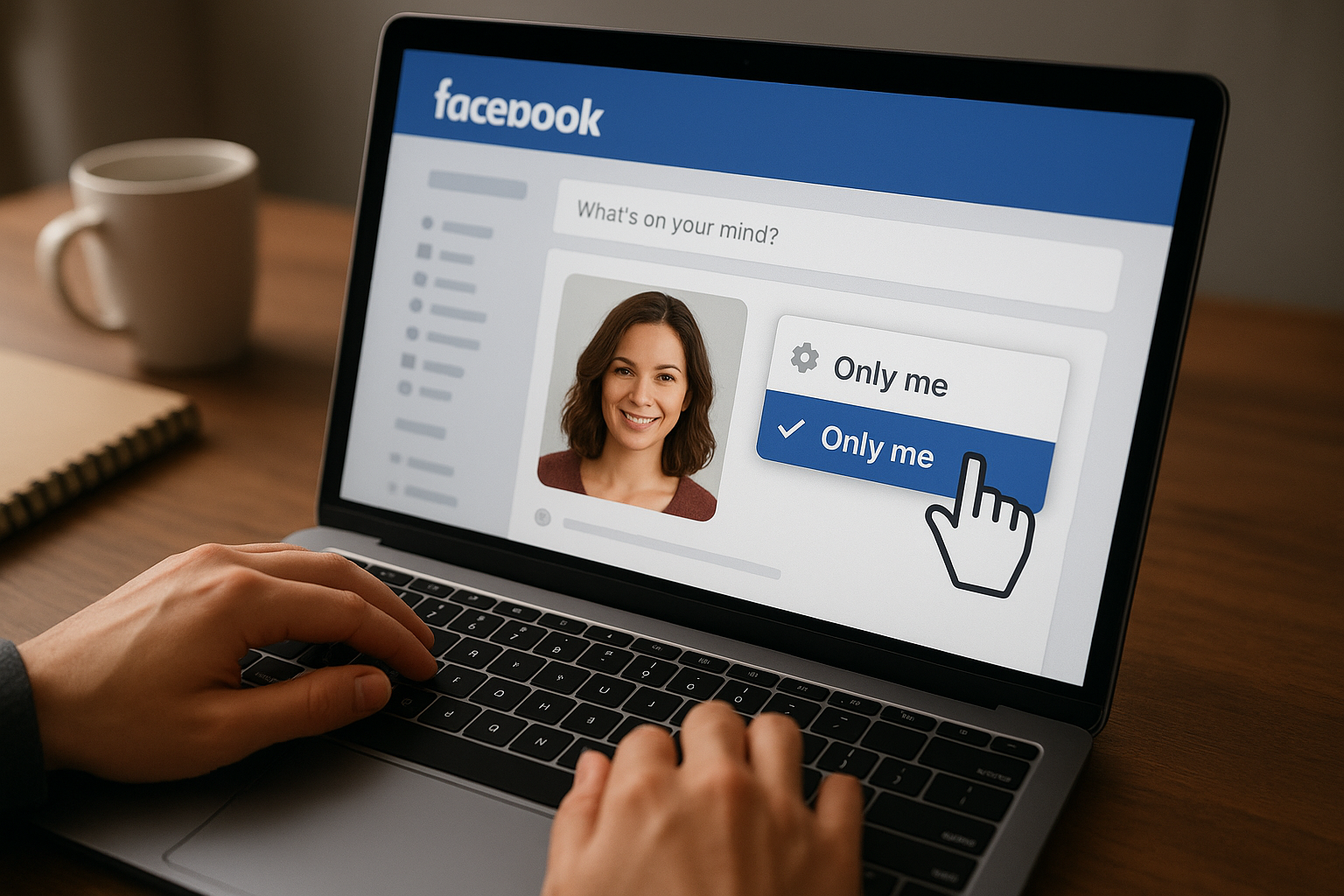
- Select "Only me" from the dropdown menu and click "Close."
3.2. Upload a New Profile Picture
Now that you've disabled post sharing, you can upload your new profile picture:
- Go to your Facebook profile and hover over your current profile picture.
- Click on the camera icon that appears and select "Upload Photo."
- Choose the photo you want to set as your new profile picture and click "Open."
- Adjust the cropping and positioning of your photo as desired.
3.3. Adjust Privacy Settings
Before saving your new profile picture, you can adjust its privacy settings to control who can see it:
- Click on the privacy dropdown menu below your profile picture (it will likely be set to "Public" by default).
- Select "Only me" or "Friends" depending on your preference.
3.4. Save Changes
Once you've selected your desired privacy setting, click "Save" to update your profile picture. Your new profile picture will be visible to you (and your friends, if you selected that option), but Facebook will not send notifications about the change.
Additional Tips
Here are some additional tips to help you change your Facebook profile picture discreetly:
4.1. Choose the Right Time
If you want to minimize the chances of people noticing your profile picture change, consider updating it during off-peak hours when fewer people are active on Facebook.
4.2. Update Your Cover Photo
Updating your cover photo along with your profile picture can help draw attention away from the profile picture change itself.
4.3. Use a Temporary Profile Picture
Facebook allows you to set a temporary profile picture that reverts back to your previous one after a specified time. This is a great option if you want to change your profile picture for a short period, such as to support a cause or celebrate a special occasion.
Frequently Asked Questions (FAQs)
-
Q: Will my friends be notified if I change my profile picture multiple times in a short period? A: No, as long as you follow the steps outlined in this guide, your friends will not receive notifications about your profile picture changes, regardless of how frequently you update it.
-
Q: Can I change my profile picture privacy settings after I've already updated it? A: Yes, you can change the privacy settings of your profile picture at any time by clicking on the photo and selecting "Edit Privacy."
-
Q: Will my profile picture still be visible on my timeline? A: If you set your profile picture privacy to "Only me," it will not appear on your timeline. However, if you set it to "Friends," it will be visible on your timeline to your friends.
Conclusion
Changing your Facebook profile picture without notifying everyone is a simple process that allows you to update your profile discreetly. By following the steps outlined in this guide and using the additional tips provided, you can easily change your profile picture without drawing too much attention or sending unwanted notifications.
Remember, your Facebook profile is a representation of you, and you have the right to control who sees your updates and when. Whether you're making a minor change or prefer to keep your profile picture updates private, this guide empowers you to do so with ease.
Related Posts
- The Benefits Of Social Media Collaboration With Other Brands
- Crafting The Perfect Linkedin Background Picture Tips And Best Practices
- Ai Text Generator For Job Applications